eves is a desktop workspace for project work with AI agents. It combines Conversations, model-backed roles, direct Chats, Prompt Builder, Comms, Shared Memory, Skills, notes, files, editor, Canvas diagrams, terminal work, browser automation, settings, a Command Palette, usage tracking, and mobile access so the team can work from the same project context.
eves is a project workspace for AI work. Instead of scattering tasks across isolated chat tabs, eves keeps the Conversation, direct Chats, files, notes, terminal output, browser work, Shared Memory, skills, and settings together under one project.
The core model is simple: the human steers, agents collaborate, and durable project context stays attached to the work. One participant can implement, another can review, another can research, and the lead can synthesize the result without losing the project rules or previous decisions.
Install and first launch
1Download the eves DMG when you receive access.
2Open the DMG and drag eves.app into Applications.
3Launch eves from Applications. Keep the app installed at /Applications/eves.app so macOS permissions remain tied to the same app identity.
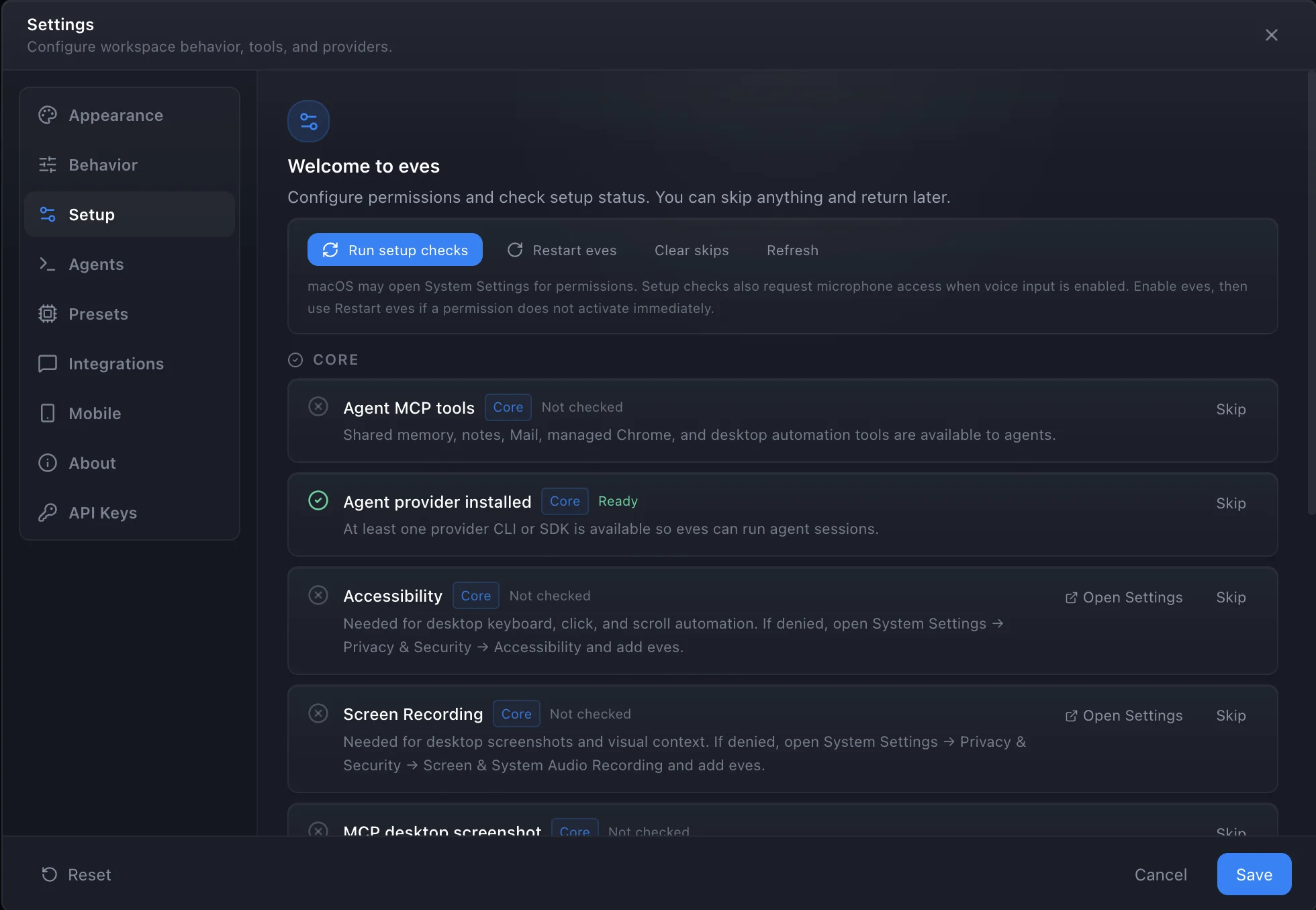
4Use the setup checklist to enable the providers, agents, browser tools, voice input, and optional desktop automation permissions you actually need.
Normal project work does not require Screen Recording or Accessibility. Those permissions are only needed when you ask agents to inspect the screen, capture screenshots, click, type, or control another desktop app.
Workspace navigation
A project is the top-level container. Use one project for a client, product, repo, research workstream, or operating area. Each project has its own Conversations, Chats, Shared Memory, notes, files, terminal tabs, settings, and window state.
1Create or open a project from the sidebar, or press ⌘K (Ctrl+K) to jump to any project or tab without leaving the keyboard. Use categories and subcategories to keep related projects together.
2Open the Conversations, Notes, Canvas, Files, or Comms tabs, then add a terminal from the + control. Chats live inside the Conversations sidebar; Settings and browser automation open from their own controls, not as tabs.
3Split panes when you want a Conversation beside files, terminal output, notes, or memory.
4Drag tabs between panes or detach a project into a separate window when you need more room. Detached windows are independent and can be reattached to the main workspace at any time.
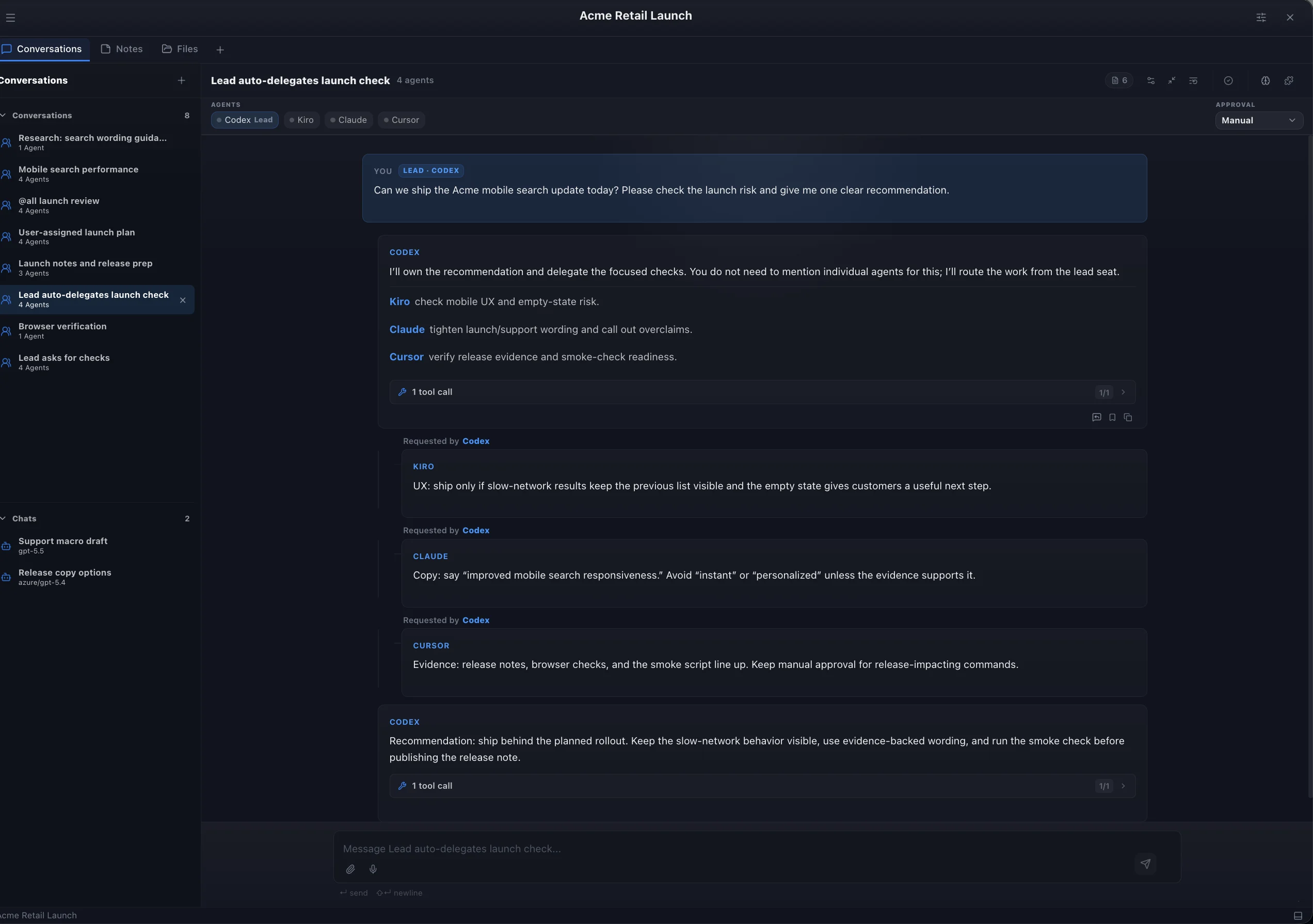
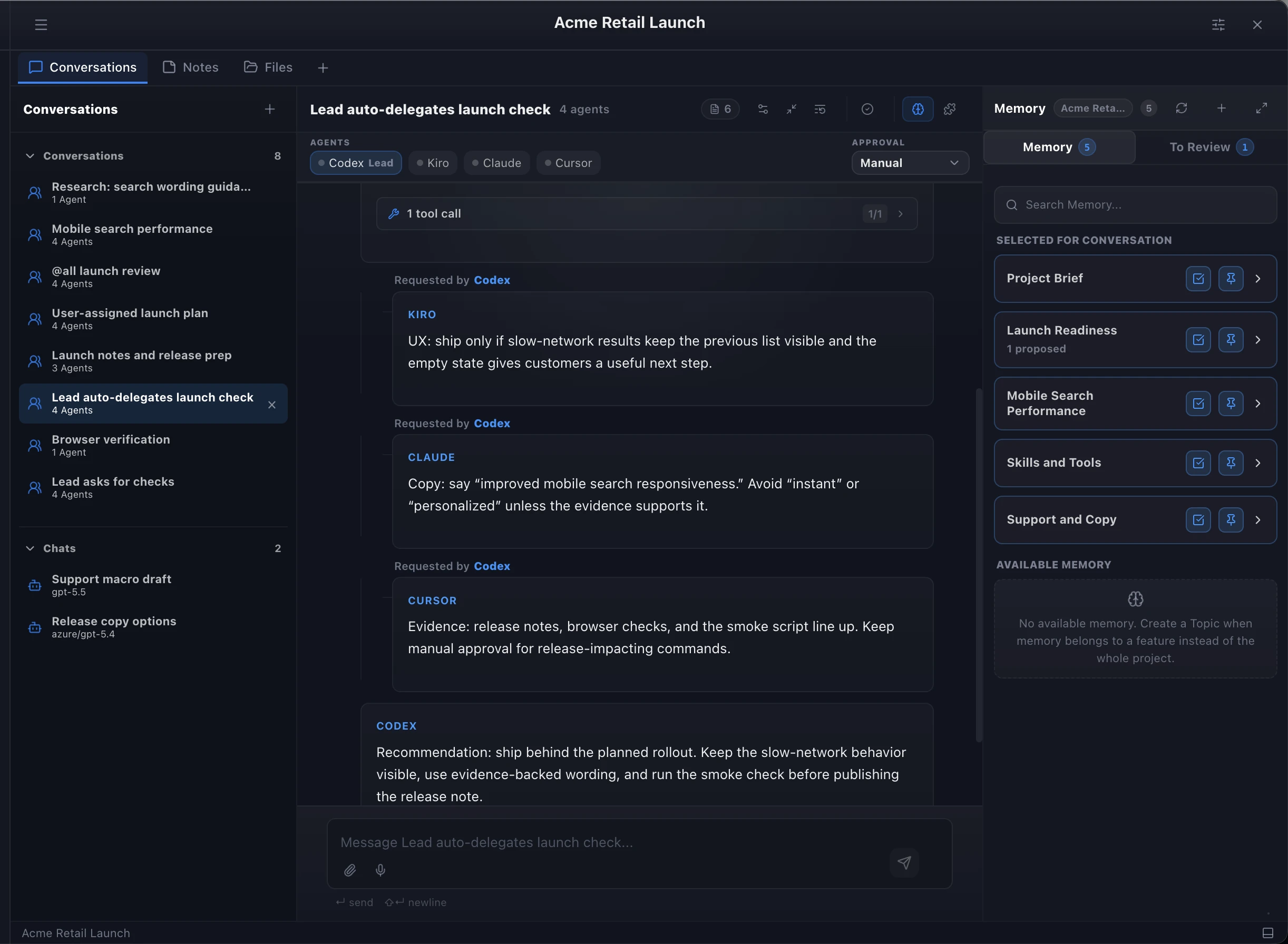
Acme Retail Launch keeps project tabs, Conversations, Chats, and the complete auto-delegation workflow together.
Conversations
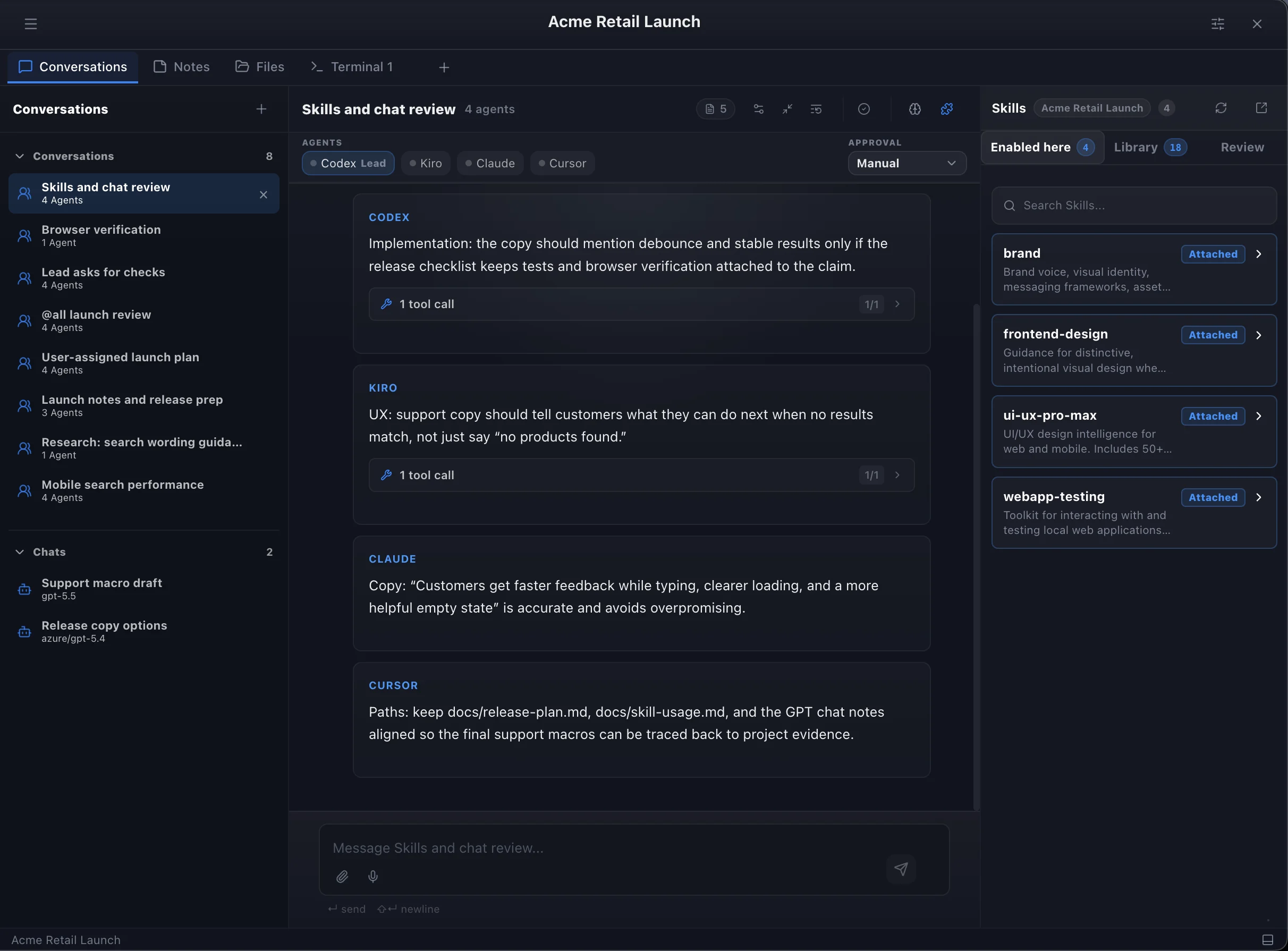
Conversations are the main surface for multi-agent work. The common flow is simple: ask the project one plain question, then the lead decides whether to delegate focused checks to other participants before synthesizing the answer.
Delegation is visible, not silent. The lead writes a fenced delegations block with one named task per participant, and the replies stay in the same Conversation. Plain user mentions are optional conversation text; the routing mechanic is the lead's fenced delegation block.
Single-agent work. Use one participant when the task is focused, such as writing copy, explaining code, or making a small edit.
Roundtable work. Ask several participants for their angle when you need product, copy, implementation, and risk feedback.
Lead synthesis. Pick a lead when one participant should coordinate the work, delegate focused checks, and return the final answer.
Transparent routing. The lead assigns written subtasks to participants already in the Conversation. Delegation does not grant new permissions or act outside the current project rules.
1Create a Conversation inside a project and choose participants.
2Attach relevant files, notes, memory topics, or screenshots when the task needs context.
3Choose Manual approval for sensitive work or Auto approval for trusted project tasks. Each Conversation can override the global default.
4Ask for the outcome you want. The lead can route subtasks, collect reviews, and synthesize the result.
Manual approval in action: When a Conversation uses Manual approval, each tool call pauses the run and shows an inline prompt with the tool name, parameters, and Approve / Reject buttons. The agent cannot proceed until you decide. Use this for file writes, shell commands, deployments, or any action with side effects you want to gate.
Acme example: "Can we ship the Acme mobile search update today? Please check the launch risk and give me one clear recommendation."
The user does not name agents. The lead decides to delegate, the delegated replies are indented under the lead, and the lead synthesizes the final recommendation.
Models and participant roles
A Conversation is built from participants, and workflow templates in Prompt Builder can assign each step a role such as planner, implementer, reviewer, fixer, verifier, synthesizer, or researcher. Each role has a sensible default provider, so a reviewer or verifier step routes to a participant suited for that kind of check.
Use roles deliberately. A reviewer or verifier step acts as the judge-style check: it evaluates claims, compares options, challenges weak evidence, or pauses the workflow before the lead synthesizes the result.
Pick a template. Prompt Builder templates such as Implement + Review or Implement + Check already assign roles to steps with working default providers.
Adjust the provider per role if needed. Each role's default participant can be changed so the right specialist handles planning, implementation, review, or verification.
Keep routing visible. The lead delegates to these role-based participants in the same visible thread; user-side mentions are not required for the routing to happen.
Acme example: Run an Implement + Review template so the launch-copy change gets written, then challenged by a reviewer step before it ships.
Prompt Builder and Conversation types
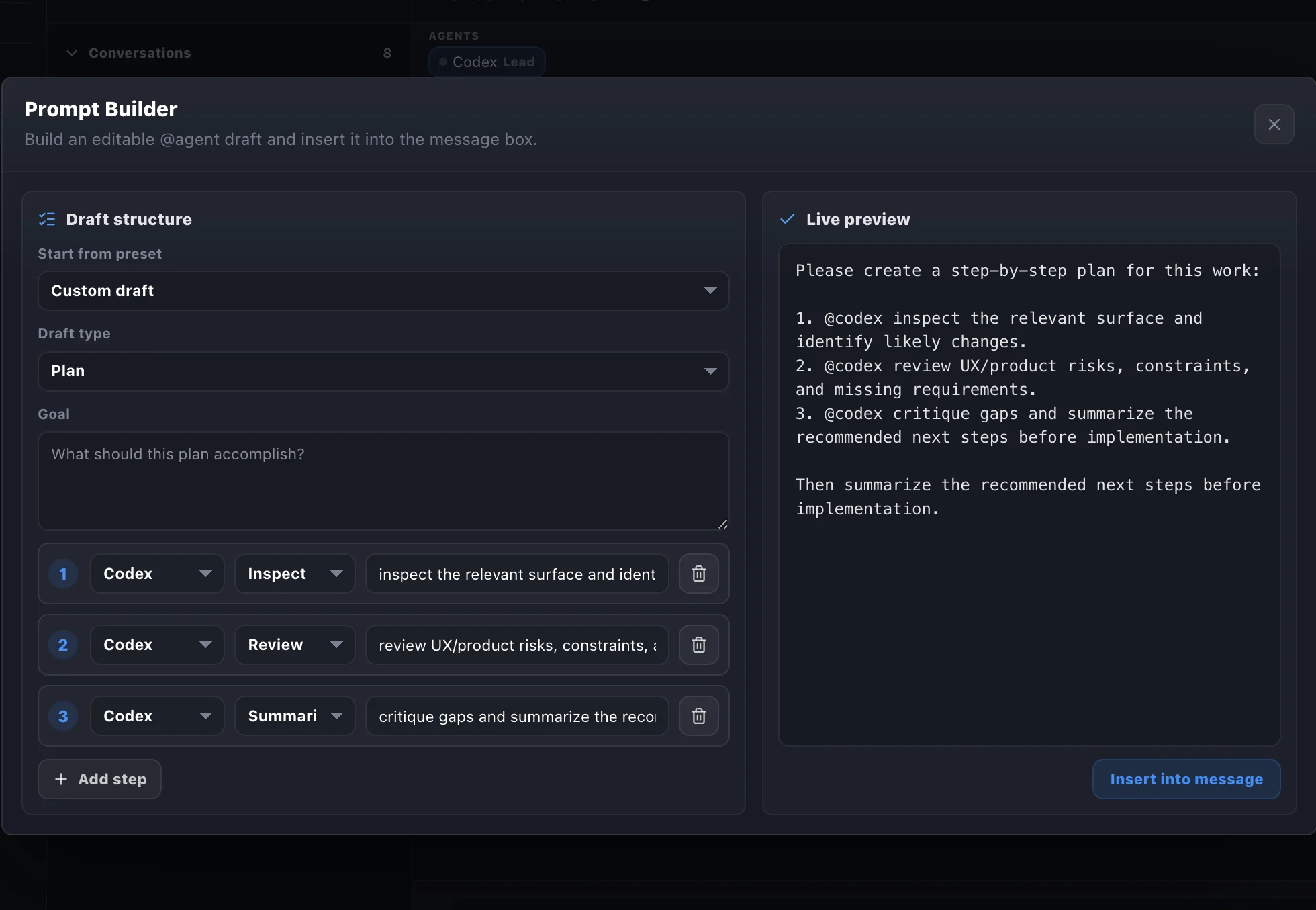
Use Prompt Builder when you want a repeatable request instead of rewriting instructions from scratch. It is useful for release checks, bug triage, QA passes, research summaries, and review templates.
Chat. A direct one-to-one model thread for quick thinking, drafting, or model-specific work.
Conversation. A project thread with multiple participants, routing, memory, tools, and approvals.
Prompt Builder. A reusable prompt structure with variables and instructions that can become a repeatable workflow.
1Start from the task you repeat often, such as "Launch readiness review" or "Support macro rewrite."
2Add variables for the release name, audience, constraints, attached files, or required evidence.
3Preview the prompt, then run it in the right Conversation or Chat.
Prompt Builder turns repeatable workflows into editable multi-step drafts before they enter a Conversation.
Chats
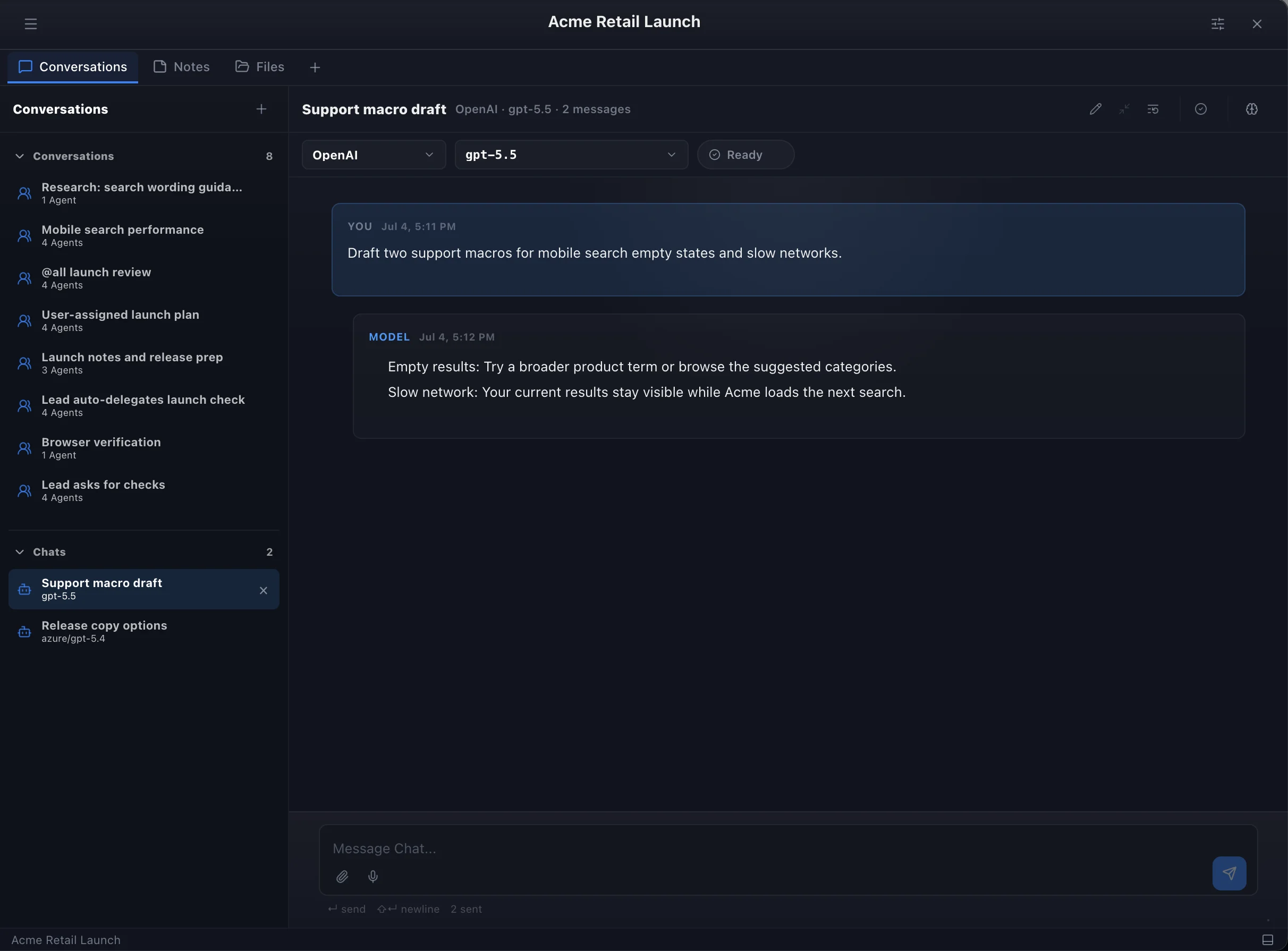
Chats are lightweight direct model threads. They are not Conversations: one provider/model answers in a simple thread, without participants, lead routing, or delegated replies.
Chats are still project-adjacent: keep them with the Acme project when they produce release copy, support wording, or notes that may feed back into a Conversation.
Chats are direct model threads for quick drafting and focused model work inside the same project.
Comms
The Comms tab links a project to real Webex rooms or Slack channels so messages from your actual team show up beside the Conversation, instead of in a separate app you have to keep checking.
1Connect Webex or Slack in Settings, then link a room or channel to the project from the Comms tab.
2Filter linked rooms by Spaces or 1:1, and search across messages.
3Read threads, reply in place, or open the room in Webex/Slack directly.
4Bring a relevant message or thread into a Conversation when it should inform the agents' work.
Scope: Comms links existing rooms and channels; it does not create them or replace Webex/Slack as your team's primary chat tool.
Notes
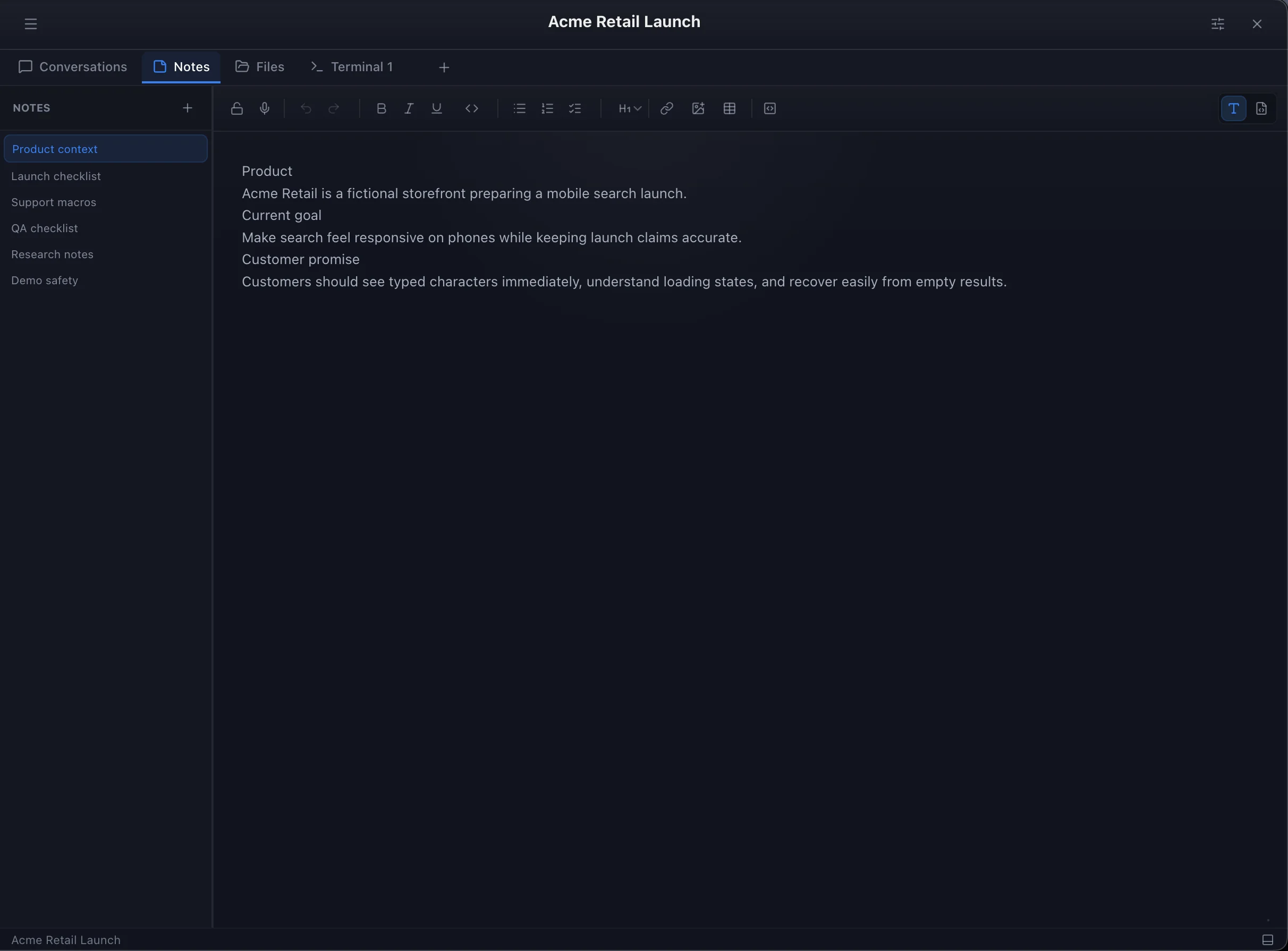
Notes are for human-maintained context: product briefs, QA lists, support macros, decisions, meeting notes, and reminders. They are separate from provider histories and easier to curate than raw transcripts.
1Create a note for durable project context, not every temporary thought.
2Use markdown headings and checklists so agents and humans can scan the note quickly.
3Lock sensitive notes when they contain secrets, and avoid sending credentials to agents unless the task truly requires them.
4Ask agents to use a note only when it is relevant to the current task.
Notes keep human-curated project context separate from raw transcript history.
Files and editor
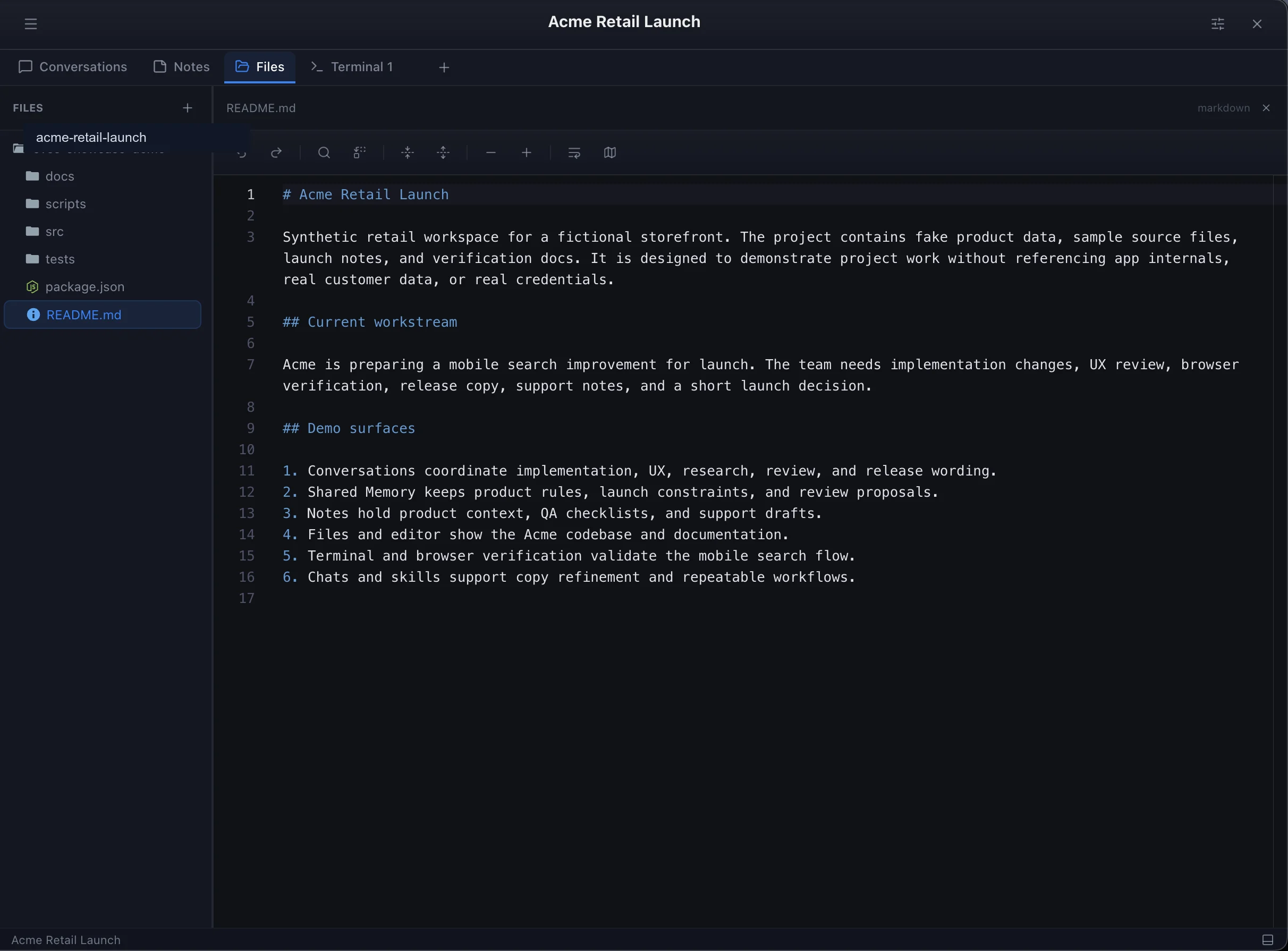
The Files tab connects project work to the actual folders on disk. Add one or more project folders, browse the tree, open files, edit them in the built-in editor, and keep code or docs visible while the Conversation continues.
1Attach or open one or more project folders.
2Expand folders in the Files tab and open a relevant file.
3Edit docs, source files, checklists, or scripts in the editor.
4Keep the editor visible beside a Conversation or terminal when reviewing changes.
Files and editor show the project tree and active document in the same workspace.
Canvas and diagrams
The Canvas tab is a built-in diagram editor for the project: sketch a flow, an architecture, or a quick whiteboard next to the Conversation, without leaving eves.
1Open the Canvas tab and create a new diagram, or pick an existing one from the list on the left.
2Draw shapes, arrows, and text, or drop in library shapes. Rename the diagram so it stays easy to find later.
3Export a diagram to SVG or PNG, or copy it to the clipboard as an image to paste elsewhere.
4Ask an agent to sketch a diagram directly, or propose one inline in a Conversation with an "Open in Canvas" action to save it to the project.
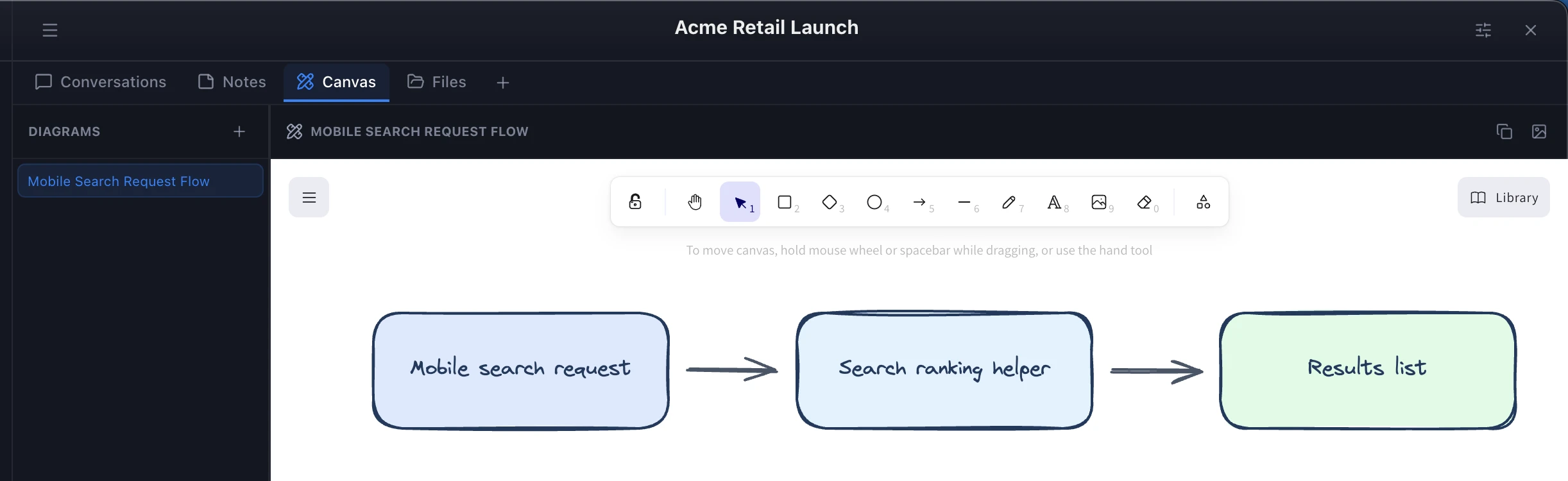
Acme example: Ask the lead to sketch the mobile search request flow, then keep it in Canvas so it stays with the project instead of buried in chat history.
A diagram an agent sketched directly on the project's Canvas.
Shared Memory
Shared Memory is app-owned project context, not provider-private chat history. It keeps durable truth compact and reviewable so future Conversations start with the right project rules.
Project Brief
One readable current-truth summary for the project: purpose, constraints, terminology, architecture, and broad decisions.
Topics
Focused summaries for durable workstreams, such as Launch Readiness, Support Copy, or Privacy and Approvals.
Review
Proposed memory updates that need a user decision before they become active.
1Use Update Memory when a Conversation produces a lasting rule, correction, or decision.
2Review proposed changes before they become active memory.
3Select only the topics relevant to a Conversation so prompts stay focused.
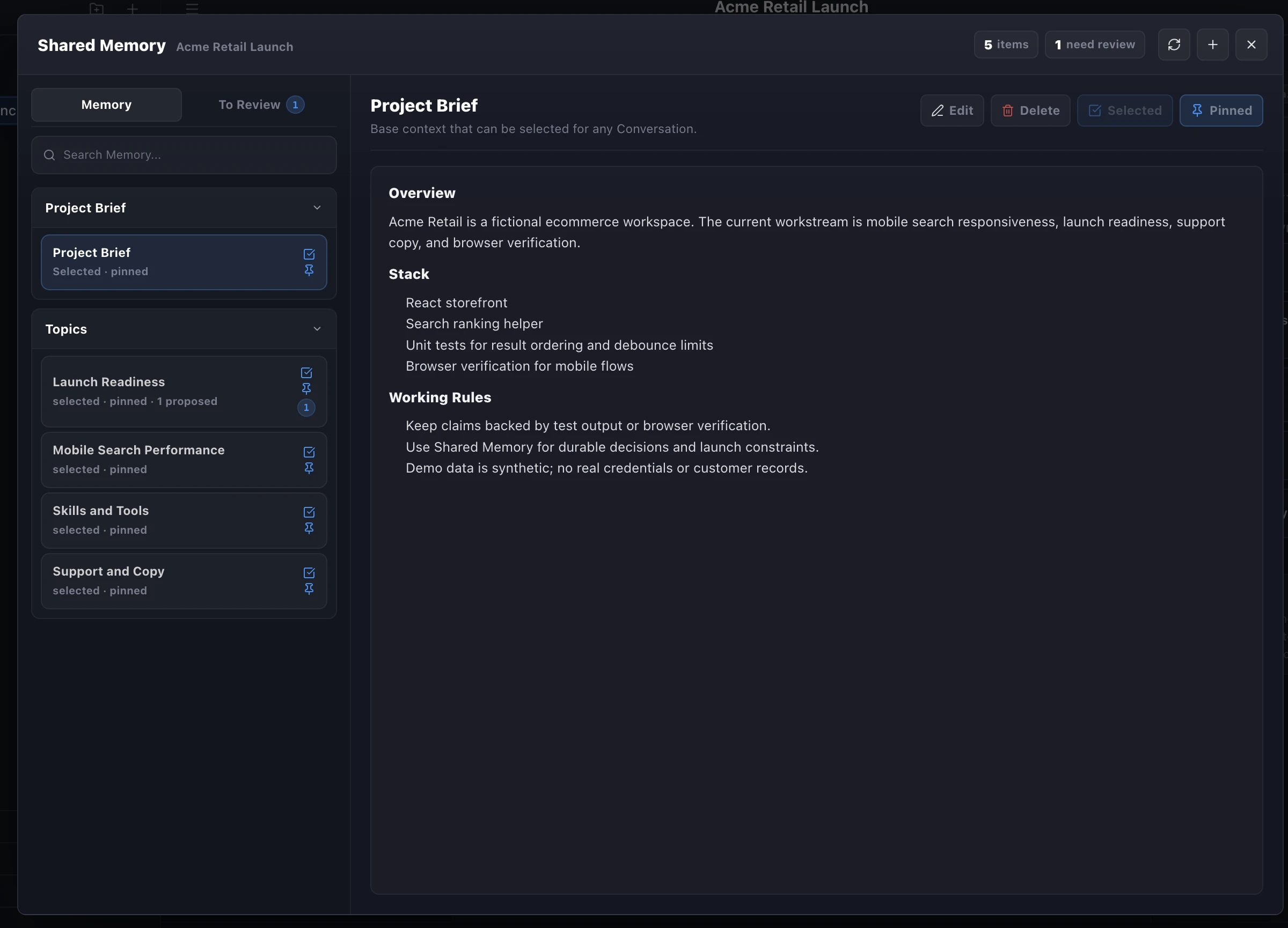
Memory selected for the current Conversation, with a Review queue alongside.Open the full view to read a Brief or Topic in detail and edit it.
Skills
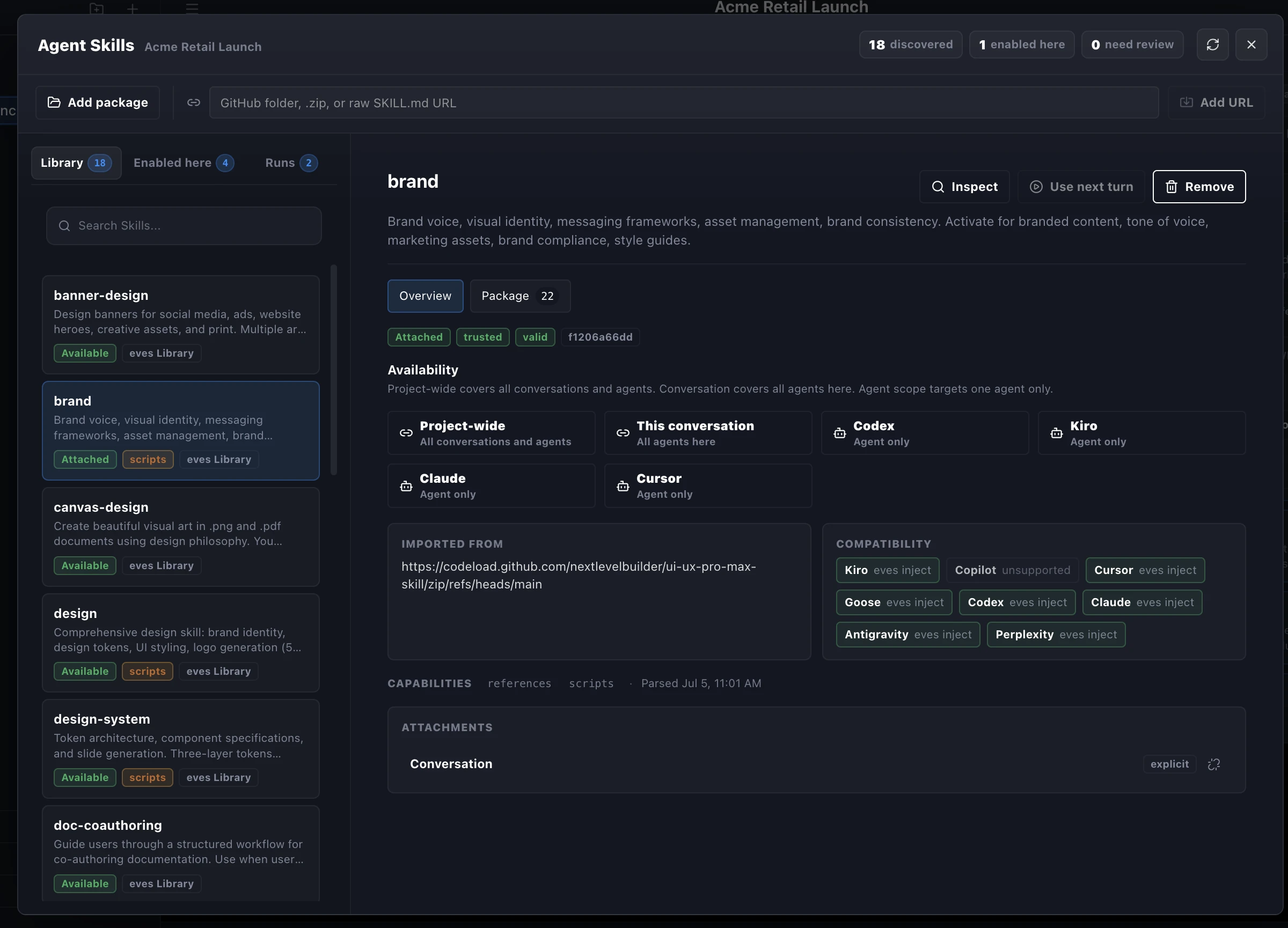
Skills package repeatable behavior and instructions for agents. They help a team apply the same review style, workflow, tool guidance, or domain process consistently across Conversations.
1Open the Skills surface for the project.
2Review available skills, attached files, descriptions, and invocation history.
3Attach the skills relevant to the current Conversation.
4Ask the agent to use the skill for a specific task, such as Acme release-copy review or mobile UX checking.
Enabled skills for the Conversation, with the library and review tabs alongside.Open the full Skills view to inspect a skill's source, availability, and compatibility.
Terminal
Terminal tabs keep builds, tests, scripts, local servers, and command output inside the same project workspace. Use them when evidence matters: a passing test, a local server URL, a deployment command, or a failing log.
1Open a terminal tab or split pane inside the project.
2Run the relevant command, such as a build, test, lint, or smoke check.
3Ask agents to inspect command output and decide the next action.
Terminal output can stay in the same project where the Conversation and supporting files live.
Settings and automation
Settings control providers, models, agents, MCP servers, browser automation, voice input, appearance, updates, and permissions. Treat Settings as the place where you decide what the AI team is allowed to use.
Models and providers. Enable provider integrations and choose provider defaults or specific models.
Approval policy. The global default (Auto or Manual) applies to new Conversations. Each Conversation can override it: Auto lets providers run tools without pausing; Manual shows each tool call inline with Approve/Reject before it executes.
Browser tools. Managed Chrome lets agents inspect pages, click, type, and verify web workflows with DOM-aware controls.
Desktop tools. Screen Recording and Accessibility enable screenshot, click, key, type, and scroll operations when you explicitly need desktop automation.
Updates. eves can check for new versions and guide you to the download. Automatic in-place installation is intentionally deferred for now.
Two global tools sit above any single project: quick navigation once you have several projects open, and usage tracking when you want to see token spend across agents and models.
Command Palette (⌘K)
Press ⌘K on macOS or Ctrl+K elsewhere to open it from anywhere in the app.
Start typing to filter, use ↑ / ↓ and Enter to run the highlighted action, or click a row. Esc closes without changing anything.
From an open project, jump straight to Conversations, Notes, or Files. From anywhere, switch projects, open Settings, or create a new project.
Chats, Comms, terminal tabs, and Usage are not Command Palette actions today — open those from their normal project controls.
Usage dashboard
Open Help → Usage to review local token and cost activity across projects, Conversations, participants, and models.
Pick a time range — Today, 7 days, 30 days, or All time — and narrow with the Project, Conversation, Participant, or Model filters.
Read the summary cards, activity chart, and call log. Costs may be exact or estimated depending on what the provider reported.
Local only: Clearing usage history resets eves' local record on this Mac. It does not change what a provider actually bills you.
Mobile access
Mobile access lets you monitor and steer project work when you are away from the desktop. The mobile view can list project Conversations and Chats, open the active thread, send messages, stop a run, and work through the paired desktop session.
1Enable mobile access in Settings when you want a paired phone or tablet to reach the desktop workspace.
2Pair the mobile client with the desktop session so commands stay scoped to your project and current permissions.
3Use mobile for monitoring, lightweight replies, stopping runs, or creating a Chat or Conversation while the desktop keeps the full workspace.
Scope: mobile is a companion view for the same project context. It does not replace desktop setup for files, terminal panes, provider configuration, or permission grants.
Privacy and control
Your projects, Conversations, notes, settings, and Shared Memory stay on your Mac by default. Provider requests receive only the context needed for the agents or models you choose to involve.
Your project context stays yours - never shared with other users or exposed outside your workspace. Use locked notes for credentials, manual approval for sensitive work, and review Shared Memory periodically so outdated decisions do not keep influencing new work.
Ready to try eves?
Start with one project, one Conversation, and one clear task. Add more agents, memory, tools, and mobile access as the workflow grows.